Showing posts with label Web Part. Show all posts

Friday, November 15, 2013

Corrupt / Broken Web Part No Worries! How to Access the Web Part Maintenance Page


I haven't had to use this trick in a while, but I ended up having to remember it today, so I figured I would write quick blog post on it.

From time to time a web part can become corrupt or broken making it impossible to delete, edit, remove, etc from the page.  This can be an enormous headache and a very annoying scenario when you first encounter it.  The easiest way to remove the broken web part is by utilizing the web part maintenance page.  To access the page, simply put “?contents=1” at the end of your URL.  For example if my page was:

us/sitename/pages/ExamplePage.aspx

I would use us/sitename/pages/ExamplePage.aspx?contents=1 to access the web part maintenance page.  From this page you can easily see which web parts are being used on the page and easily delete the one(s) that are corrupt or broken.

Cheers!

Dan

Thursday, September 26, 2013

How to Embed A PDF into A Webpage

This post will be relatively quick, since the ability to present a PDF file in a webpage within SharePoint is easy!

Materials Needed:

1.    A Text File .txt

2.    Content Editor Web part

3.    A SharePoint Page

The first step to showing the PDF within a webpage is to store the PDF on your SharePoint site where users will be able to access it.  Once you have uploaded your PDF copy the URL for the newly uploaded PDF file.

After you have uploaded the file, create a new text .txt document in Notepad.  Insert the below code into your text file, but replace the “Your URL HERE” with the URL of your PDF File.  Make sure to leave the “  “at each end since that is needed.


<embed src="YOUR PDF URL HERE.pdf" style="width: 100%!important; height: 1000px!important;style="z-index:-5;" scrolling="no" frameborder="no" allowtransparency="true">


Now that the file has been created, store the text file somewhere on your SharePoint site so we can link a content editor Web Part to it.


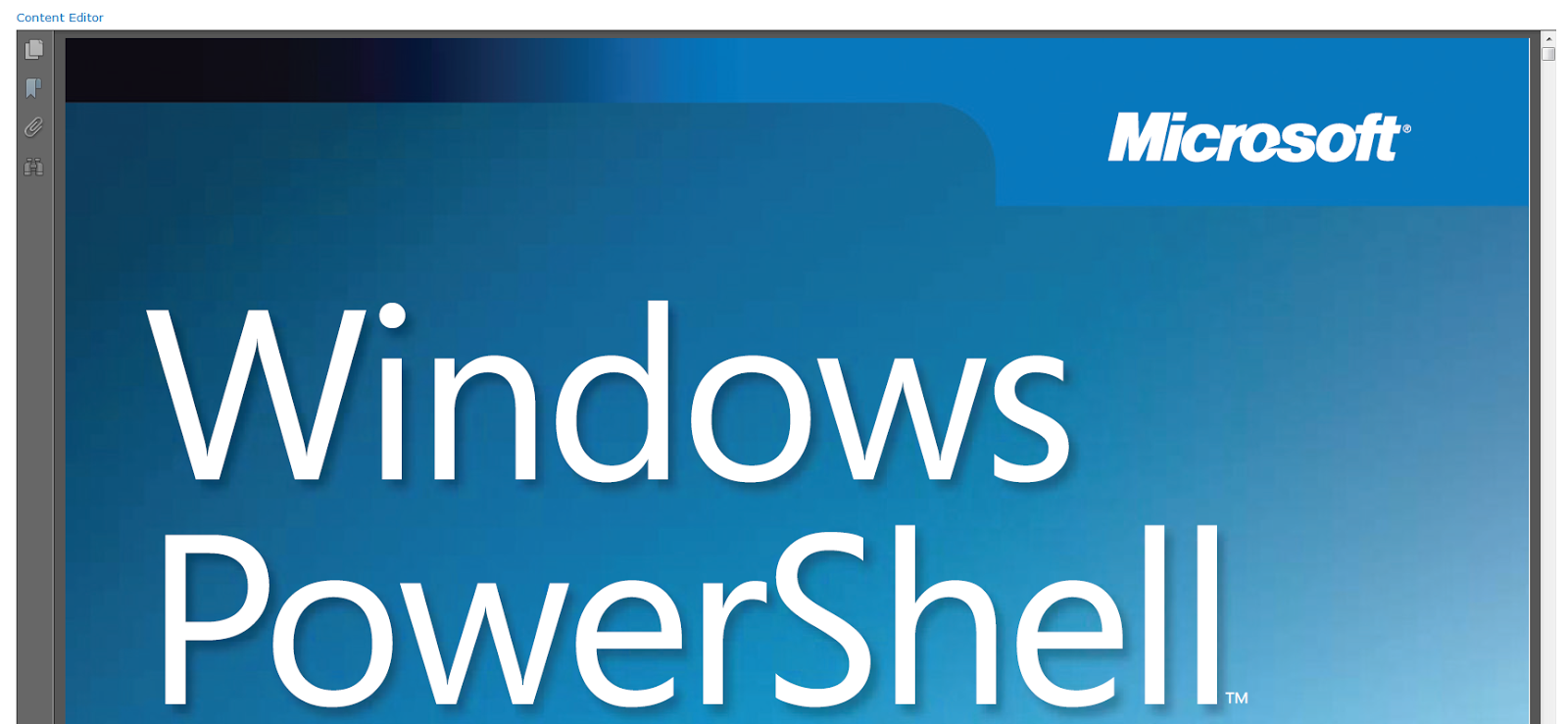
Place the content editor Web Part on your page and link it to the text file that you just uploaded, apply the changes, and save the page.  You should now your PDF within the browser!


Cheers!

Dan